






It is unfortunately very common practice to reuse the same password over and over for multiple accounts to not have to remember different passwords for each account. The obvious danger for this is if one of those accounts is compromised, now all your account services are compromised. The person with your information can reuse that same set of credentials to sign into all the other services you consume. While Multi-Factor authentication (think getting a code texted to you or an app installed on your cell phone where you must approve the sign-in when sign-ins are attempted) adoption is growing, it is not close to being everywhere yet.
If you happen to be one of Google Chrome’s billions of users, you will have recently noticed some changes to the 10 year old browser. At first, you’ll notice the more bubbly tabs, and then you may notice the Apps shortcut embedded in the Bookmarks bar that take you to your most commonly used Google items. It may take you some time before you notice the password suggestion feature.
For a while now, Google has had your back and has offered to remember your passwords for you to ease some of this demand on your memory or post it note stack of papers. It requires that you be signed into Chrome so it knows who you are. Google took the next step in this latest release.
Using Chrome Password Assist
Now when signing up for a new account on a website, Google will not only offer to remember the password after you have entered it, but now will offer a randomized 15 character password that includes upper case and lower case characters and numbers.
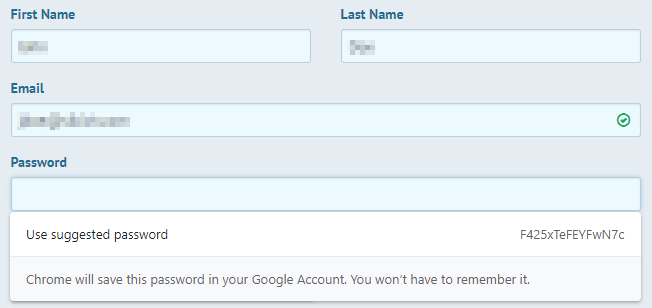
This is Google’s take on assisting users not to use that same password used for every other service they consume, but instead use a complex long unique password and remember it for you. Simply click anywhere in the “Use suggested password” section to opt for using the suggested password. You will see the familiar yellow box of Google entering information on your behalf and saving that information in your Google passwords.

You will even see a quick confirmation screen of what just happened after completing sign up. Also note there is a little key that marks that this website has a saved password on it.
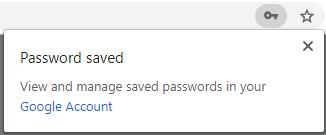
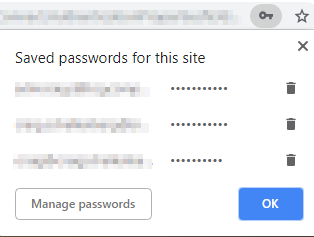
You can click that key to see all the different passwords that are saved for this website if you use different accounts for the same service.
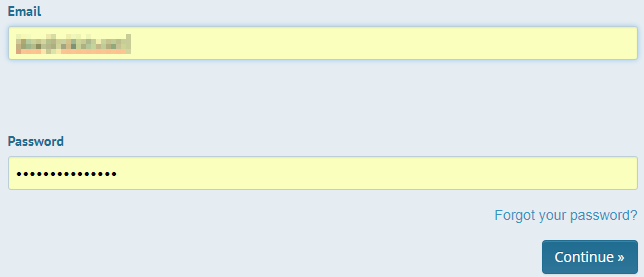
If you were to sign out of the website and attempt to sign back into it, again Chrome has you covered and automatically enters the information to sign you in (again the familiar yellow boxes).
What if you really didn’t memorize that 15 character random password that you saw for 5 seconds? You can view it from your Chrome password manager if you have administrative credentials to the machine where Chrome is currently logged on to. Your machine dies? Sign into Chrome on your new machine and your credentials will be there. The only real negative to this that I can see is that by using this method, you are locked into using Chrome to access that site going forward and that is where your passwords are saved. But if you are already drinking the Kool-Aid, this may be something you may want to start looking at yourself.
What questions do you have about technology? Leave a comment or contact us and we can address it in a future blog post.
This publication contains general information only and Sikich is not, by means of this publication, rendering accounting, business, financial, investment, legal, tax, or any other professional advice or services. This publication is not a substitute for such professional advice or services, nor should you use it as a basis for any decision, action or omission that may affect you or your business. Before making any decision, taking any action or omitting an action that may affect you or your business, you should consult a qualified professional advisor. In addition, this publication may contain certain content generated by an artificial intelligence (AI) language model. You acknowledge that Sikich shall not be responsible for any loss sustained by you or any person who relies on this publication.