






Where is my new relationship??
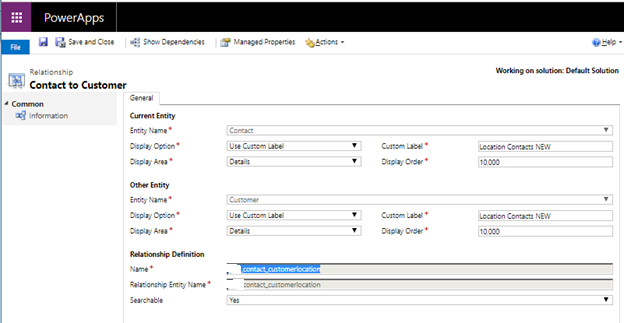
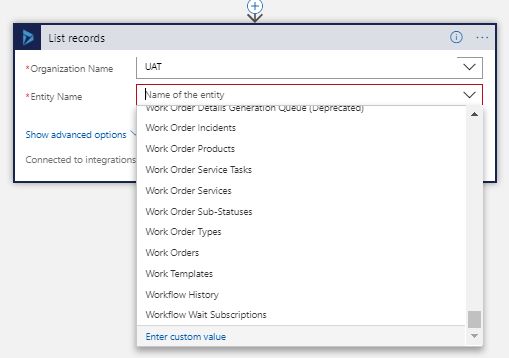
After searching the list of entities, my eyes were getting tired. I could not find the N:N relationship that I had created between Contacts and Customers (Accounts). The schema name was new_contact_customerlocation and it had a Custom Label of “Location Contacts NEW.” However, Dynamics 365 did not have this relationship anywhere in the entity list.
Next, I decided to try entering a custom value of new_contact_customerlocation. No luck!
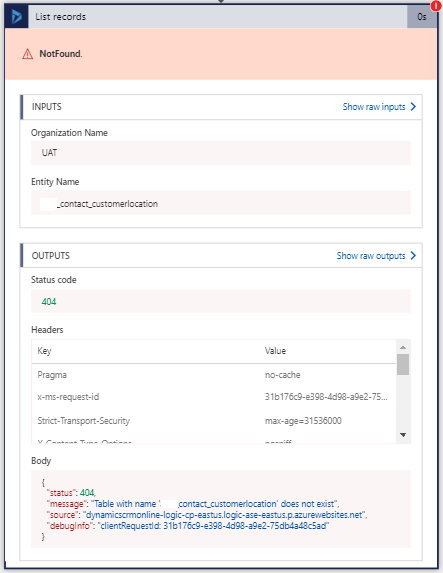
Then I entered the custom label on a whim. Still fails.
As a last effort, I checked the odata entity list itself by pasting the URL in a browser: https://uat.api.crm.dynamics.com/api/data/v9.0/
Then I hit CTRL+F to find “customerlocation”
Bingo!
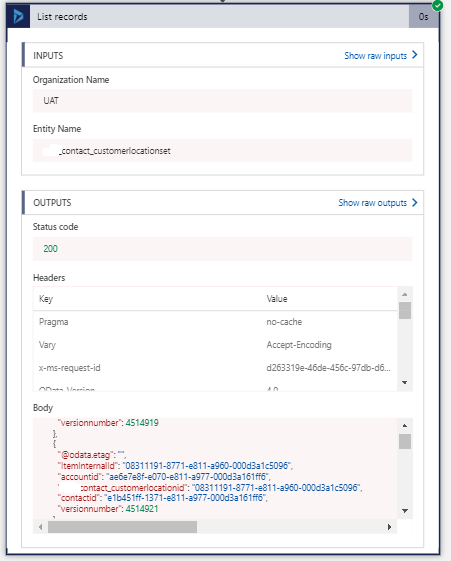
I found my entity, but it had a different name. The word “set” was appended, making it “new_contact_customerlocaitonset.”

I add this as a custom value and success! I had my data returned.
So, how do we prevent this in the future? Since N:N relationships are hidden under the covers, it may just be worth creating that third entity yourself instead of using a N:N relationship. Definitely think it through when choosing this relationship type.
If you have any questions about N:N relationships in Dynamics 365 or Dynamics 365 in general, please contact us at any time!
This publication contains general information only and Sikich is not, by means of this publication, rendering accounting, business, financial, investment, legal, tax, or any other professional advice or services. This publication is not a substitute for such professional advice or services, nor should you use it as a basis for any decision, action or omission that may affect you or your business. Before making any decision, taking any action or omitting an action that may affect you or your business, you should consult a qualified professional advisor. In addition, this publication may contain certain content generated by an artificial intelligence (AI) language model. You acknowledge that Sikich shall not be responsible for any loss sustained by you or any person who relies on this publication.