






In my last blog, I discussed Microsoft’s latest go at PowerToys. Full source code is available here on GitHub: https://github.com/microsoft/PowerToys. Microsoft is looking for contributions to it from developers, along with any feedback there.
You can download the installer at the same location at GitHub here: https://github.com/microsoft/PowerToys/releases
Included in the current release (as of this writing v0.14.1) of PowerToys are 3 available toys:
- FancyZones
- PowerRename
- Shortcut Guide
For this blog, we are going to focus on the PowerRename PowerToy.
Why Would You Need PowerRename?
Have you ever thought you knew the correct spelling of a word only to discover later that you were a character or two off from the actual spelling? What if you had used that incorrect spelling in naming a file. It would be easy enough to the right click the file, select Rename, and then modify the one file to correct your mistake.
What if the scenario was the same, but instead of just 1 file, there were 10 files named wrong? That would be a bit of an annoyance to have to the right click each file individually and rename them, but would still be doable.
Now, what if the scenario was still the same, but instead of 10 files, it was 1,000 files. Even the thought of right-clicking 1,000 files and renaming them one by one actively instills in me the desire to just get up and go take a nap instead. I’d likely just live with the incorrect spelling instead of wanting to dedicate the hours of time it would take to rename all the files. Plus, there is a strong chance that I would make some mistakes in this heavily manual process for some of the files during the process.
Enter PowerRename PowerToy
I use Microsoft OneDrive. One of the best features of OneDrive, in my opinion, is the ability to automatically upload photos from your cell phone if you installed OneDrive on the phone. This feature was added to OneDrive for Business during 2018. When activated, a “Pictures” folder with a “Camera Roll” folder with another folder indicating what year the photos are taken in show up in the OneDrive account. This makes for accessing pictures from my computer that I take on my cell phone insanely easy, and the software does it automatically.
However, the file naming leaves a lot to be desired. My cell phone names the files, and OneDrive simply uploads the files as they are. Here’s an example:
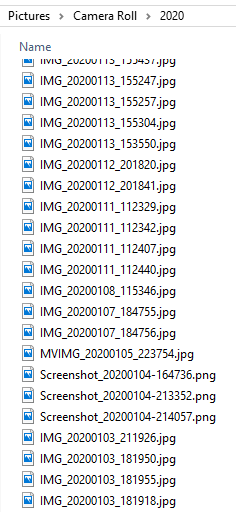
The syntax of the file name begins with either IMG for a standard picture, MVIMG for a moving picture, or Screenshot for a screenshot taken on the phone. Next is the Year, Month, and Day which is followed by the time of day it was taken in military hours first, then minutes and seconds.
That tells me a great deal about the type of picture and even when it was taken. However, what if I can’t remember what I was doing on a specific day, and I want to rename a subset of the files to indicate what I was doing then or where I was? I would have to the right click each file and rename them manually. If it were only a couple of files, then no problem. Again, if this is a substantial number of files, I would want a better way.
PowerRename is a quick way to do it.
With PowerRename, I can select a set of files (all files created on February 18th in this case because I was at a client site that day), then right-click and pick PowerRename.
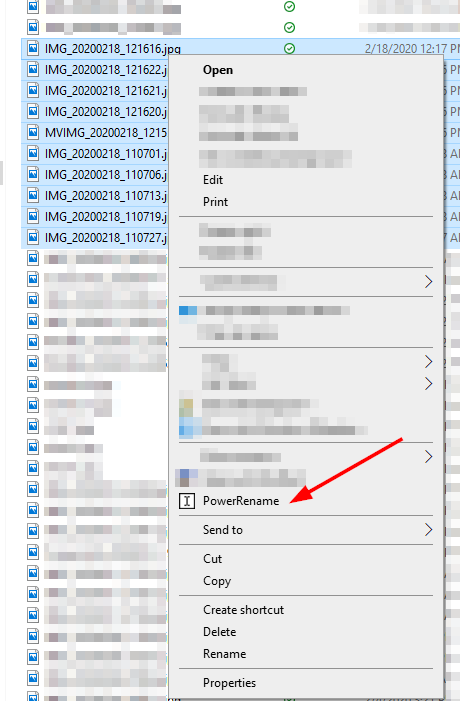
One of the strong capabilities of PowerRename is the ability to use Regular Expressions. Regular Expressions creation is out of scope of this blog, but for quick reference, one of the ways to use Regular Expressions is by using a Group. If I wanted to search for and replace either IMG or MVIMG, I could use the Regular Expression (img|mvimg), and PowerRename will find either instance of img or mvimg and match it. Note that in Regular Expressions, characters are case sensitive, but in PowerRename, there is a separate checkbox that gives the option of Case Sensitivity.
There are other options available for selection.
Match All Occurences
This will replace the text with any and every occurrence of the search criteria, not just the first time search finds it. This may be useful, but not in my example.
Exclude Files
PowerRename is not just for files. If you select folders, you can rename those as well. Selecting this option disregards files that are part of the selection.
Exclude Folders
Similar to Exclude Files, this option will exclude any folders in the selection from the rename process.
Exclude Subfolder Items
By default, PowerRename will work recursively through subfolders, applying the same rename process to files and folders within subfolders. Check this option to only apply to the current folder level.
Enumerate Items
There is the option to add a numeric prefix to each renamed file. This option will automatically append that number.
Item Name Only
If you happen to be renaming .JPG files and wanted to replace the file named JPG.JPG that would be problematic. Check this box to ignore the file extension.
Item Extension Only
Similarly, if you only want to change the extension, check this box.
Once you have made your decision on which options to use for the rename, pay attention to the Preview given at the bottom. This shows what you will rename your files to be. If happy with your options, click the Rename button once, and you are good to go.
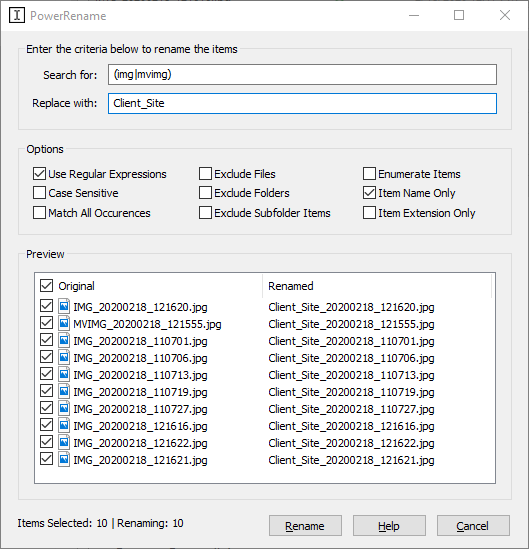
PowerRename will remember your settings for the next time you choose to use it as well.
In my next blog, I’ll visit the next toy in PowerToys – the Shortcut Guide.
This publication contains general information only and Sikich is not, by means of this publication, rendering accounting, business, financial, investment, legal, tax, or any other professional advice or services. This publication is not a substitute for such professional advice or services, nor should you use it as a basis for any decision, action or omission that may affect you or your business. Before making any decision, taking any action or omitting an action that may affect you or your business, you should consult a qualified professional advisor. In addition, this publication may contain certain content generated by an artificial intelligence (AI) language model. You acknowledge that Sikich shall not be responsible for any loss sustained by you or any person who relies on this publication.